Tuesday, June 25, 2013

SQL Server 2012 AlwaysOn Availability Groups setup scripts - Part 1

Here are some scripts which can be used for setting up 2 nodes AlwaysOn Availability Groups, you can make your own automation script based on them.

Environment :
Name IP Address OS Description
SQL2012-01 192.168.1.21 Win2012 Primary
SQL2012-02 192.168.1.31 Win2012 Secondary
SQL2012HA 192.168.1.41 N/A AG Listener
SQLClUSTER 192.168.1.50 N/A Cluster Name

1. Configure Powershell enviroment
    a) Configure execution policy on all servers

        set-executepolicy unrestricted

        based on your company security policy, you can use other parameter instead of "unrestricted". here is just a sample
     b)Configure Powershell remote command on all servers
       #winrmsetup.ps1
        Enable-PSRemoting -Force  
        Set-Item wsman:\localhost\client\auth\CredSSP -value true -force   
        Enable-WSManCredSSP -force -role server   
        set-item wsman:localhost\client\trustedhosts -value *    -force 
        set-item wsman:\localhost\listener\listener*\port -value 5985    -force 
        restart-Service winrm   
        winrm get winrm/config   
        winrm enumerate winrm/config/listener   
        #winrmsetup.ps1

         If you want to centralize the installation process, and want to run the code from remote server, ps remote call and winrm need to be enabled and configured correctly. winrm is for powershell remote command call, for instance "invoke-command -computer".

2. Setup Cluster
Before sql server installation, we create a new cluster with 2 nodes(SQL2012-01, SQL2012-02)

#Create-WinCluster.ps1
Import-Module FailoverClusters

$ClusterNode1=Read-Host "Enter Cluster Node 1 Name"
$ClusterNode2=Read-Host "Enter Cluster Node 2 Name"

$CMD={Set-Service -Name ClusSvc -StartupType Automatic}

$useraccount=$env:USERDOMAIN+"\" + $env:USERNAME 
$cred= Get-Credential -UserName $useraccount -Message "Please enter the user name"

Invoke-Command -ComputerName $ClusterNode1 -ScriptBlock $CMD -Credential $cred
Invoke-Command -ComputerName $ClusterNode2 -ScriptBlock $CMD -Credential $cred


Write-Host "Testing Node $ClusterNode1"
Test-Cluster -Node @($ClusterNode1) -Ignore network,inventory,storage

Write-Host "Testing Node $ClusterNode2"
Test-Cluster -Node @($ClusterNode2) -Ignore network,inventory,storage

Write-Host "Clear old info on Node $ClusterNode1"
Clear-ClusterNode $ClusterNode1 -Force

Write-Host "Clear old info on Node $ClusterNode2"
Clear-ClusterNode $ClusterNode2 -Force

$ClusterFqdn=Read-Host "Enter New Cluster Name(Please specify the name without domain information)"
$ClusterIP=Read-Host "Enter New Cluster IP"

Write-Host "Creating Cluster $ClusterFqdn...."
New-Cluster -Name $ClusterFqdn -Node @($ClusterNode1,$ClusterNode2) -NoStorage -StaticAddress @($ClusterIP)
#Create-WinCluster.ps1
Here cluster node 1 is "SQL2012-01", cluster node 2 is "SQL2012-02", cluster name is "SQLCluster", cluster ip is "192.168.1.50"

if cluster service hasn't been installed on all sql nodes, you can run the command below to install the service first.
Import-Module ServerManager
Add-WindowsFeature Failover-Clustering



Friday, June 21, 2013

Huge collection of Free Microsoft eBooks

I must share it, there are many useful resource

http://blogs.msdn.com/b/mssmallbiz/archive/2013/06/18/huge-collection-of-free-microsoft-ebooks-for-you-including-office-office-365-sharepoint-sql-server-system-center-visual-studio-web-development-windows-windows-azure-and-windows-server.aspx?Redirected=true

http://blogs.msdn.com/b/mssmallbiz/archive/2012/07/27/large-collection-of-free-microsoft-ebooks-for-you-including-sharepoint-visual-studio-windows-phone-windows-8-office-365-office-2010-sql-server-2012-azure-and-more.aspx

http://blogs.msdn.com/b/mssmallbiz/archive/2012/07/30/another-large-collection-of-free-microsoft-ebooks-and-resource-kits-for-you-including-sharepoint-2013-office-2013-office-365-duet-2-0-azure-cloud-windows-phone-lync-dynamics-crm-and-more.aspx

Thank you , Eric


Thursday, June 20, 2013

use Table Variables in transaction

when using table variable, please note table variable doesn't support transaction rollback. here is the words from BOL

Because table variables have limited scope and are not part of the persistent database, they are not affected by transaction rollbacks.


let's do a testing:
==============
DECLARE @MyTableVar table(
    EmpID int NOT NULL,
    OldVacationHours int,
    NewVacationHours int,
    ModifiedDate datetime);

begin tran
insert into @MyTableVar
values(1,2,3,getdate())

rollback

select * from @MyTableVar
==============

well, we still get the result returned even if we rollback the transaction. the only place this feature might be useful is for log. we can log what happen during transaction rollback by table variable.

another thing might cause big issue is:
table variable don't have statistics, so don't anticipate it can get good enough execution plan if you insert a lot of data into table variable.

Sunday, April 28, 2013

Limit running Powershell script under specific path with AppLocker

Say if you have a management server or a script repository server, sometimes users save/test/run their script from different path, it is different to maintain the script version, and it is hard to determine which script can be removed or kept on the server.

here is a solution,  you can save all scripts in a central directory, and keep script from running in other path with Applocker. let's say my scripts are saved in c:\work:
1. Open "local security policy" by secpol.msc

2. Open "Security Settings" -> "Application Control Policy"->"Applocker"->"Script Rules"

3. Right click "Script Rules", Click "Create New Rule..."

4. Select "Allow", and enter the user name which


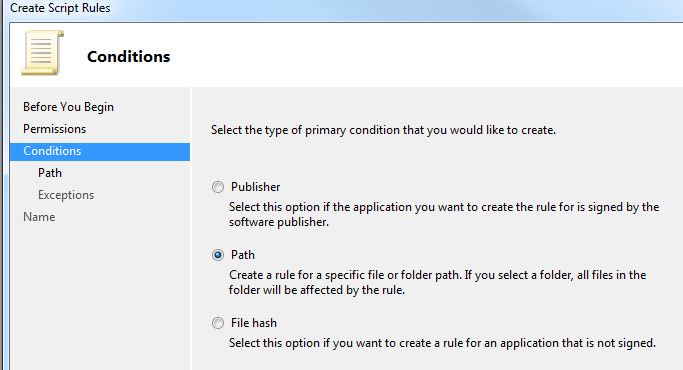
5. Select "Path"


6. Enter the script file path "C:\work"


7. Click "Next" if you don't need exception

8. Enter the Name of the Rule

9. Click "Yes" to create default rule if it is the first time you use Applocker


After the rule created, if you run powershell script from other path, for instance "c:\temp", you will get error


Only running powershell script under c:\work is allowed.


Actually no only powershell script, but also other script like(.com,.bat...) can only be run from c:\work,


you can create other rules to meet your requirement.

Wednesday, April 10, 2013

Set DAC port with a specific number

Usually named instance can uses dynamic port, if firewall setup on the server, you can use SQL Server Configuration Manager to assign a specific port to SQL Server instance. However, there is no UI to reconfigure the DAC port, you need to use regedit.exe to configure a specific port number.

1. Run regedit.exe
2. Open registry key
HKEY_LOCAL_MACHINE\SOFTWARE\Microsoft\Microsoft SQL Server\MSSQLX.InstanceName\MSSQLServer\SuperSocketNetLib\AdminConnection\Tcp

"X" is the sql server version number, "InstanceName" is the sql server instance name. for instance, my sql2012 named instance is "SQL2012", the path is like below
HKEY_LOCAL_MACHINE\SOFTWARE\Microsoft\Microsoft SQL Server\MSSQL11.SQL2012\MSSQLServer\SuperSocketNetLib\AdminConnection\Tcp

3. Set Value "TcpDynamicPorts" to a specific port number


here we set the  "TcpDynamicPorts" to 12345.

4. Restart sql server service, then in errorlog you can find the DAC is monitoring port 12345
2013-04-10 15:30:16.22 Server      Server is listening on [ ::1 <ipv6> 12345].
2013-04-10 15:30:16.22 Server      Server is listening on [ 127.0.0.1 <ipv4> 12345].
2013-04-10 15:30:16.22 Server      Dedicated admin connection support was established for listening locally on port 12345.

5. Validate the connection with DAC
sqlcmd -S tcp:localhost,12345 -E

please note, don't need to use parameter -A in sqlcmd command line.


Friday, April 5, 2013

Use delegated session configuration in Powershell 3.0

Powershell 3.0 has many new feature, and they are useful in some circumstance.

let's say User A log in server A, and he wants to access the resource on Server B, however User A doesn't have permission to access the resource, User B has resource access permission, so User A needs to use User B's credential.


Normally if we want to use remote session to access resource , we can use cmdlets
1. Enter-PSSesssion
2. Invoke-Command.

However we need to provide User B's credential and password when create remote session. There is potential risk, sometimes we don't want to give the password to operators, in that case, we can use delegated session configuration.

Here is the step
1. Register a new session configuration with "-RunAsCredential UserB" on Server B

Register-PSSessionConfiguration -Name DomainAdmin -RunAsCredential xxx\administrator -ShowSecurityDescriptorUI

Here we create a session configuration named "DomainAdmin", and the session will be run as user "xxx\administrator" credential

2. Grant full access to User A
In the next popup window, grant full access to User A


3. Verify the session configuration
you can run "Get-PSSessionConfiguration" to view the all session configuration on Server B.
or you can run "Set-PSSessionConfiguration DomainAdmin -ShowSecurityDescriptorUI" to configure the permission.


4. Now on server A, create remote session with "-ConfigurationName" parameter
Enter-PSSession -ComputerName ServerB -Credential xxx\UserA -ConfigurationName DomainAdmin

here we use UserA's credential to create remote session, and use session configuration DomainAdmin. so we just need provide password for UserA when creating remote session, then we can run as User B's credential on Server B


so when we run whoami, it shows the current user is administrator(User B).

delegated session configuration is easy to use, and very useful especially on system maintenance work.


Wednesday, April 3, 2013

Compression Backup with BUFFERCOUNT parameter

If you want to make you backup faster, you can try BUFFERCOUNT parameter with compression backup.

From Book Online description:

BUFFERCOUNT = { buffercount | @buffercount_variable }
Specifies the total number of I/O buffers to be used for the backup operation. You can specify any positive integer; however, large numbers of buffers might cause "out of memory" errors because of inadequate virtual address space in the Sqlservr.exe process.
The total space used by the buffers is determined by: buffercount * maxtransfersize.

Below is my testing result, all backups use compression parameter. the data file is 195GB with 11GB used. by using compression, the backup file is 8.4GB

1. No BUFFERCOUNT parameter
BACKUP DATABASE abc TO DISK = 'c:\temp\abc.bak' WITH COMPRESSION

it completed with 88MB/sec throughput, avg cpu% is 45

2. Add BUFFERCOUNT parameter
BACKUP DATABASE abc TO DISK = 'c:\temp\abc.bak' WITH COMPRESSION, BUFFERCOUNT = 50
it completed with 105MB/sec throughput, avg cpu% is 50

Next I tried BUFFERCOUNT = 100, BUFFERCOUNT = 150 and BUFFERCOUNT = 200

here is the result:

based on the diagram upper, when BUFFERCOUNT = 100, Throughput reach the ceiling, comparing with the first command without BUFFERCOUNT parameter(default), we made the backup process 30% faster.

you can also use multiple backup files to reach the same goal. 

3. Test multiple backup files
my sql server has 2 CPU, so I use 2 backup files:
BACKUP DATABASE abc TO 
DISK = 'c:\temp\abc1.bak',
DISK = 'c:\temp\abc2.bak'
WITH COMPRESSION

it completed with 115MB/sec throughput. avg cpu 60%.

4. Test multiple backup files with BUFFERCOUNT parameter
BACKUP DATABASE abc TO 
DISK = 'c:\temp\abc1.bak',
DISK = 'c:\temp\abc2.bak'
WITH COMPRESSION, BUFFERCOUNT = 50


based on the diagram upper, there is only 5% performance difference between using BUFFERCOUNT and no BUFFERCOUNT.

Although BUFFERCOUNT makes higher CPU %, the backup always runs during off business, so if you can afford the higher CPU% penalty, it is worth to try BUFFERCOUNT. Please test the appropriate BUFFERCOUNT value based on your environment. 


Reference:
http://sqlcat.com/sqlcat/b/technicalnotes/archive/2008/04/21/tuning-the-performance-of-backup-compression-in-sql-server-2008.aspx