Showing posts with label Powershell. Show all posts

Tuesday, July 9, 2013

Find out orphan database file on disk

Sometimes you detach databases,  or you delete a database which is in restoring status,  the data and log file will not be removed from local disk. if you forget the files,  It might cause issues
1. The files waste disk space
2. If you restore the database back to the original place,  the restore will be failed  because of the existing files.

so here is a powershell script which can find out orphan database files on disk. the script can
1. Get the database default file path from registry
2. Search all mdf, ndf and ldf files
3. Check the sql server system table to see if all files are attached.
4. Print out the file name if the file is not attached to any database.

you can download the script from here
https://docs.google.com/file/d/0B4Xde9z-OME1WWozY0hyWVpnTkU/edit?usp=sharing

and run the script as below:


here, 2 orphan db files(my.mdf and my.ldf) are found in instance sqlexpress.


Sunday, April 28, 2013

Limit running Powershell script under specific path with AppLocker

Say if you have a management server or a script repository server, sometimes users save/test/run their script from different path, it is different to maintain the script version, and it is hard to determine which script can be removed or kept on the server.

here is a solution,  you can save all scripts in a central directory, and keep script from running in other path with Applocker. let's say my scripts are saved in c:\work:
1. Open "local security policy" by secpol.msc

2. Open "Security Settings" -> "Application Control Policy"->"Applocker"->"Script Rules"

3. Right click "Script Rules", Click "Create New Rule..."

4. Select "Allow", and enter the user name which


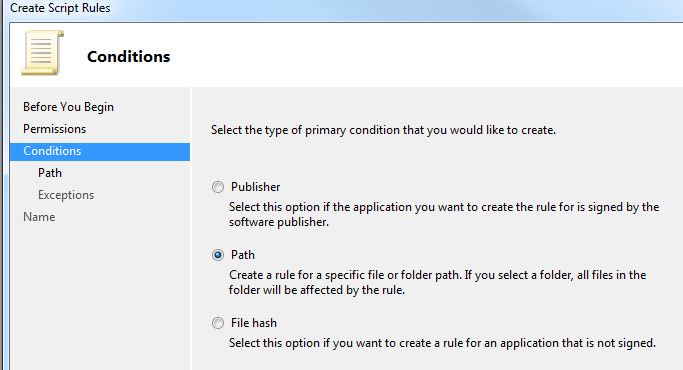
5. Select "Path"


6. Enter the script file path "C:\work"


7. Click "Next" if you don't need exception

8. Enter the Name of the Rule

9. Click "Yes" to create default rule if it is the first time you use Applocker


After the rule created, if you run powershell script from other path, for instance "c:\temp", you will get error


Only running powershell script under c:\work is allowed.


Actually no only powershell script, but also other script like(.com,.bat...) can only be run from c:\work,


you can create other rules to meet your requirement.

Friday, April 5, 2013

Use delegated session configuration in Powershell 3.0

Powershell 3.0 has many new feature, and they are useful in some circumstance.

let's say User A log in server A, and he wants to access the resource on Server B, however User A doesn't have permission to access the resource, User B has resource access permission, so User A needs to use User B's credential.


Normally if we want to use remote session to access resource , we can use cmdlets
1. Enter-PSSesssion
2. Invoke-Command.

However we need to provide User B's credential and password when create remote session. There is potential risk, sometimes we don't want to give the password to operators, in that case, we can use delegated session configuration.

Here is the step
1. Register a new session configuration with "-RunAsCredential UserB" on Server B

Register-PSSessionConfiguration -Name DomainAdmin -RunAsCredential xxx\administrator -ShowSecurityDescriptorUI

Here we create a session configuration named "DomainAdmin", and the session will be run as user "xxx\administrator" credential

2. Grant full access to User A
In the next popup window, grant full access to User A


3. Verify the session configuration
you can run "Get-PSSessionConfiguration" to view the all session configuration on Server B.
or you can run "Set-PSSessionConfiguration DomainAdmin -ShowSecurityDescriptorUI" to configure the permission.


4. Now on server A, create remote session with "-ConfigurationName" parameter
Enter-PSSession -ComputerName ServerB -Credential xxx\UserA -ConfigurationName DomainAdmin

here we use UserA's credential to create remote session, and use session configuration DomainAdmin. so we just need provide password for UserA when creating remote session, then we can run as User B's credential on Server B


so when we run whoami, it shows the current user is administrator(User B).

delegated session configuration is easy to use, and very useful especially on system maintenance work.